How to Create Hundreds of Folders in a SharePoint Document Library Using PnP PowerShell
How to Create Hundreds of Folders in a SharePoint Document Library Using PnP PowerShell

Introduction
Creating a large number of folders manually in a SharePoint Online document library can be time-consuming and inefficient. If you need to create hundreds of folders or subfolders for projects, departments, or structured document management, using PnP PowerShell is the fastest and most scalable approach.
In this guide, you’ll learn how to bulk create folders in a SharePoint document library using PnP PowerShell step-by-step.
Why Use PnP PowerShell to Create Folders in Bulk?
Manually creating folders in SharePoint can:
-
- Take hours for large structures
-
- Lead to human error
-
- Create inconsistent naming
-
- Slow down administrative tasks
Using PnP PowerShell, you can:
-
- Automate folder creation
-
- Create hundreds of folders in seconds
-
- Maintain consistent naming conventions
-
- Scale for enterprise environments
Prerequisites
Before running the script, make sure you have:
-
- SharePoint Online site access
-
- Appropriate permissions (Site Owner or higher)
-
- PnP PowerShell module installed
-
- PowerShell 7+ recommended
To install the PnP PowerShell module:
Install-Module -Name PnP.PowerShell -Scope CurrentUser
Connect using the PnP PowerShell module (without interactive login which is not supported anymore), you must use an Azure App Registration.
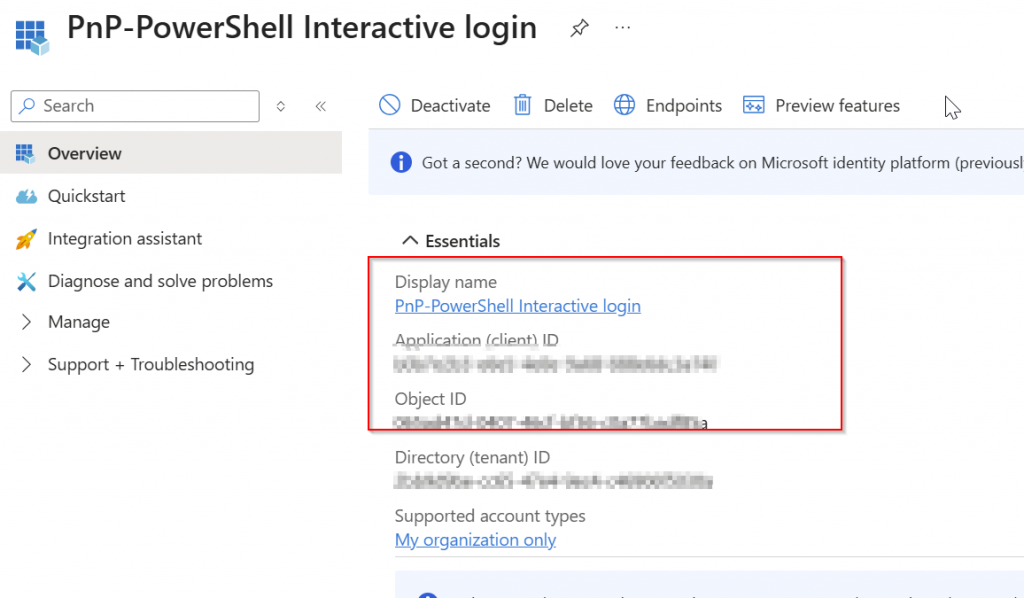
STEP 1 — Create App Registration
-
Go to:
👉 https://portal.azure.com -
Click Microsoft Entra ID
-
Click App registrations
-
Click + New registration
-
Fill in:
-
Name: PnP-PowerShell Interactive login
-
Supported account types:
✅ Accounts in this organizational directory only (Single tenant) -
Redirect URI: Leave blank
-
-
Click Register